Floor plan analyzer
Upload → analyze → save PNG or Excel
Log in, upload your plan, run analysis, then save a PNG and/or the Excel report from the left panel.
Login→
Step 1 upload→
Start AI Analysis→
Wait 5 steps→
PNG + Excel
New account? Admin approval may be required before login.
Quick steps
Files: PNG, JPG, JPEG, WEBP, PDF
- Register / Login — top of this page. “Pending” = wait for admin, then login again.
- Upload — Step 1 · Upload Floor Plan (drag or click). PDF: page arrows. More floors: choose floor, then upload.
- Run — Start AI Analysis (header). Still grey? File didn’t load — repeat upload.
- Wait — all five progress cards finish. Problems? Read AI log under the canvas.
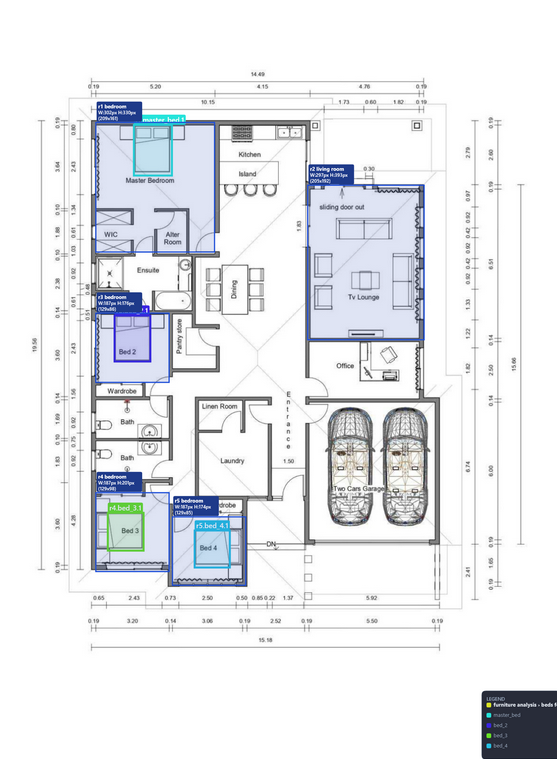
- Save — ⬇ Download Annotated Image → PNG. 📄 Excel → set units / floors / heights if needed → 📋 Floor plan spec — analysis values (.xlsx).
Photos
Decoration only — not your output.

FAQ
Short answers. Full walkthrough: Home → Quick steps.
Contact Us
Let’s connect and discuss your ideas. Our team is just a message away.
-
Address
4671 Sugar Camp Road, Owatonna, Minnesota, 55060
-
Phone
507-475-60945-6094
-
Email